
Published September 10, 2026 - Updated September 11, 2026 - By Xilly
How to Fix FPS Drops and Stuttering in PC Games
A high average FPS can hide uneven frame delivery. Identify shader stutter, CPU/GPU limits, resource pressure and network problems before changing settings.
Game Settings Optimization Guides PC Optimization Guides
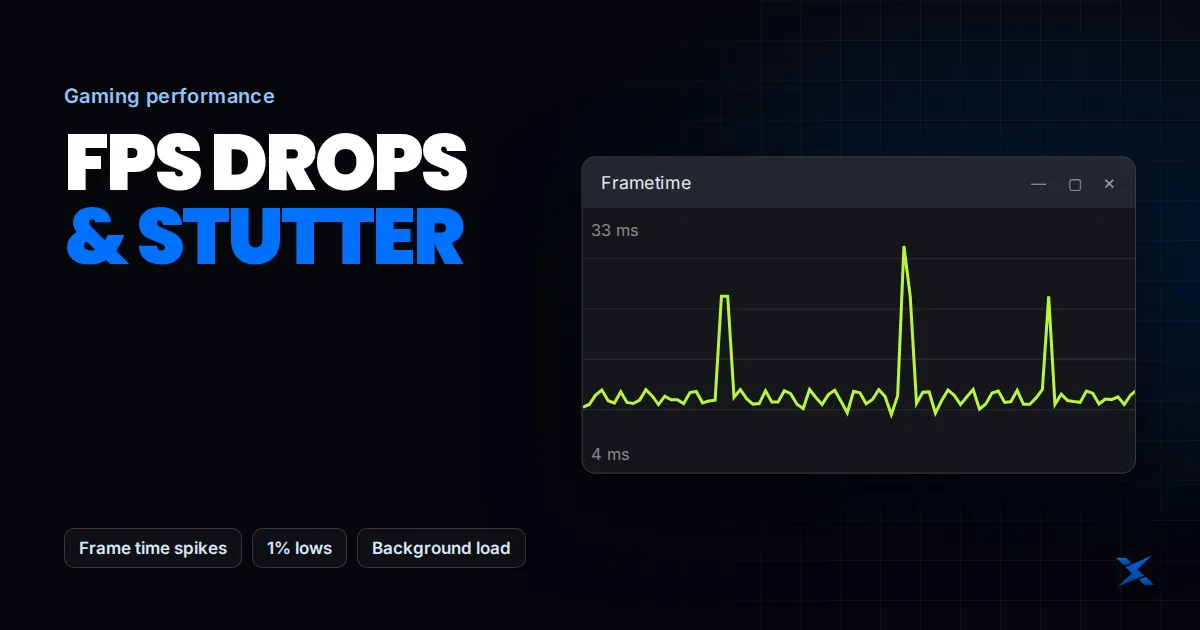
FPS drops and game stuttering happen when frames take longer to produce or arrive unevenly. The cause can be a busy GPU, CPU-side work, shader compilation, background activity, memory pressure or throttling. If FPS is high but the game stutters, inspect frame times and the circumstances of the hitch rather than relying on the average FPS counter.
Separate rendering stutter from network lag
If camera movement and the whole image hitch, inspect rendering performance. If the scene continues moving smoothly but players teleport or actions arrive late, inspect the network and server statistics as well. Both can occur together. An offline repeatable scene helps isolate local performance, although it will not reproduce every multiplayer workload.
Continue with the high-ping and packet-loss guide for network symptoms.
Build a comparison you can trust
- Choose the same benchmark, replay or short route and keep resolution, render scale, game patch and frame-generation settings unchanged.
- Record average FPS alongside low-percentile FPS or a frame-time graph. Use the same measurement tool and capture length.
- Note GPU utilization, memory use, temperatures and clock speeds during the hitch rather than only afterward.
- Change one setting, repeat several times, and keep both good and bad runs. Do not compare a quiet lobby with a busy fight.
As a simple timing example—not a measured Xilly result—120 evenly spaced frames per second gives about 8.3 ms per frame. A much longer individual frame can be visible even when the overall average remains high. Different tools calculate low-percentile statistics differently, so compare like with like and inspect the graph when the summary and your experience disagree.
Read the symptom before lowering every setting
| Observation | Next experiment | Interpretation limit |
|---|---|---|
| High GPU load during the drop | Lower render resolution or GPU-heavy effects | Utilization alone does not prove a fault |
| Lowering resolution barely helps | Check CPU-heavy settings and background work | A cap or engine limit can also hide gains |
| Hitches after driver/render-mode changes | Allow shader compilation and repeat the route | Persistent hitches still need investigation |
| Performance degrades after warming up | Compare temperatures and clocks | Power and thermal limits are different |
| Hitches when opening new areas | Check storage, memory and asset streaming | Do not blame RAM capacity from one reading |
Allow shader work to settle
Some games compile shaders during play or rebuild cached data after a driver or rendering-mode change. Epic specifically documents first-match stutter after rebuilding Fortnite shaders. Do not repeatedly delete caches as routine maintenance: that can force work to be repeated. Follow a game’s cache-repair instructions only when the symptom matches, then retest after compilation.
Official references: Epic Games: Fortnite DX12 shader stutter.
Check presentation, caps and the selected GPU
Confirm the game uses the intended GPU, especially on a laptop with integrated and discrete graphics. Compare a sustainable frame cap with uncapped rendering, and avoid stacking conflicting caps across several tools. For compatible DX10/DX11 windowed games, Windows 11’s windowed-game optimizations change the presentation path; use the per-game option and restart the game when comparing. It is not a universal DX12 stutter switch.
Official references: Microsoft: optimizations for windowed games.
Investigate sudden low FPS after an update
Check whether the game reset resolution, ray tracing, upscaling, render mode or the FPS cap. Review current driver and game release notes. Verify game files through the launcher before reinstalling the entire game. Test without optional overlays and recording applications, restoring each one if it makes no difference. Keep security and anti-cheat components intact.
On a tuned system, restore a known-stable CPU, GPU and memory configuration before chasing performance. More aggressive tuning can cause errors or inconsistent behavior without providing a useful gain. If the PC also locks up or crashes outside games, address that stability problem first. Do not treat a full Windows reinstall as the default response to one problematic title.
Continue with whole-PC freezing checks.
What to do after identifying the bottleneck
Keep the settings that improve repeatable frame delivery in your actual workload. Document the baseline, settings changed and the result so a later game update can be evaluated fairly. A stable high-end PC with unexplained poor lows may justify a hardware-specific optimization review, but a defective component or server-side issue needs a different solution. Our existing Fortnite, GPU and presentation-mode guides cover those narrower cases without promising a universal FPS increase.
Frequently Asked Questions
Why do I get stuttering with high FPS?
Average FPS can hide a small number of long frames. Check frame-time spikes, shader compilation, background work and presentation settings under the same workload.
Will more RAM fix FPS drops?
Only when insufficient usable memory is part of the bottleneck. Extra capacity does not automatically fix shader compilation, a GPU limit, thermal throttling or game-engine behavior.