
Published September 3, 2026 - Updated September 3, 2026 - By Xilly
RTX 5090 Low Performance and PCIe Troubleshooting Guide
Before changing NVIDIA settings, verify that the RTX 5090 has the PCIe bandwidth, power connection, PSU capacity, drivers, and cooling it needs under load.
GPU Optimization Guides PC Optimization Guides
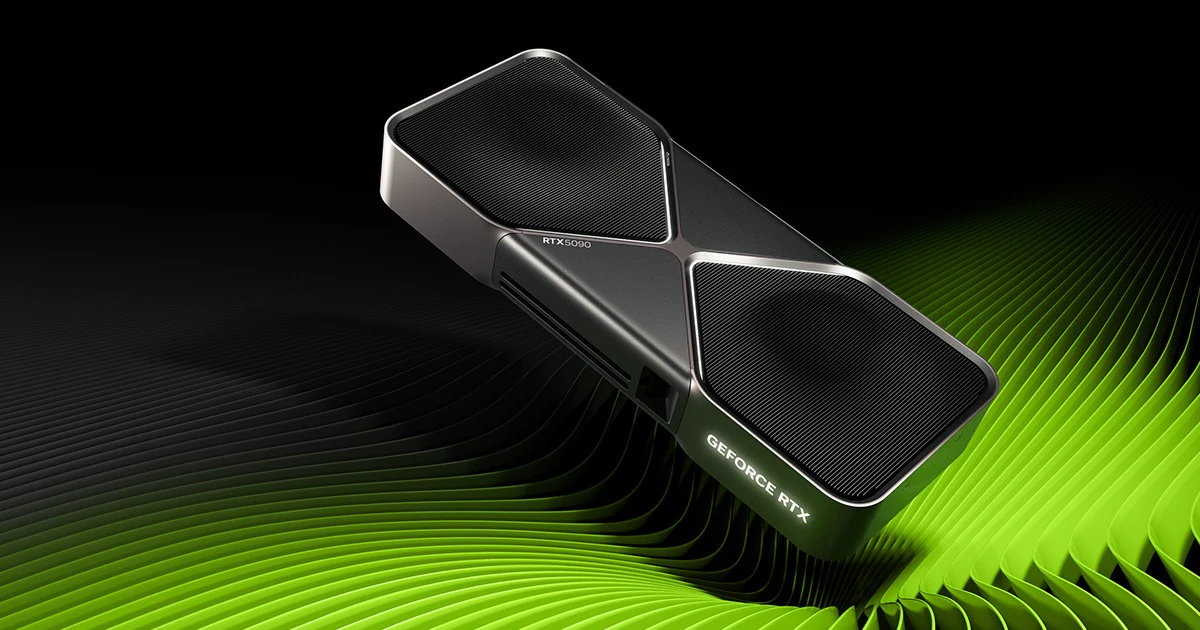
Image source: NVIDIA
An RTX 5090 can benchmark below expectations even when the GPU itself is healthy. The first checks should be physical and platform-level: which PCIe slot the card uses, how many lanes are active under load, whether a riser cable is limiting link speed, how the motherboard shares CPU lanes with M.2 slots, and whether the power connector and PSU are appropriate for the card.
Do not begin by copying an overclock. Record a stock result, GPU utilization, clock speed, temperature, board power, PCIe link width under load, game resolution, and frame cap. A CPU limit, frame cap, thermal limit, power problem, and restricted PCIe link can all look like low GPU performance for different reasons.
RTX 5090 Troubleshooting Checklist
| Check | What you want to see | If it is wrong |
|---|---|---|
| Physical slot | The motherboard's primary CPU-connected x16-length slot | Move the card and retest |
| PCIe link under load | The lane width and generation expected by the board configuration | Check slot, riser, BIOS, CPU seating, and lane sharing |
| Power connector | 16-pin connector fully inserted and flush | Power down and reseat it before testing |
| Power supply | A reputable unit sized for the complete system | Verify capacity, cable type, and vendor guidance |
| Software | Current stable driver, current BIOS, ReBAR available | Update one layer at a time and retest |
| Workload | A repeatable GPU-limited benchmark | Remove frame caps or CPU limits before judging the GPU |
Use the Primary PCIe Slot
Install the RTX 5090 in the motherboard's primary graphics slot, normally the reinforced full-length slot closest to the CPU. Lower full-length slots often run through the chipset or expose fewer electrical lanes even though the connector is physically long enough for the card.
The RTX 5090 supports PCI Express Gen 5. On a platform designed for it, PCIe 5.0 x16 is the full link. PCIe 5.0 x8 may be an intentional motherboard configuration when CPU lanes are shared, but anything below the lane width and generation documented for your exact board deserves investigation. Do not diagnose the connection while the GPU is idle: power management can report a lower generation until a render load starts.
Use GPU-Z's Bus Interface field and start its render test, or monitor the link while a repeatable 3D workload is running. Compare the reported result with the motherboard manual. The slot's physical size alone does not tell you its electrical lane count.
Test Without the Riser Cable
A vertical-mount riser adds another connector and signal path between the motherboard and a PCIe 5.0 GPU. A damaged, poorly seated, or lower-generation riser can cause link training at a reduced generation or width, instability, black screens, or inconsistent benchmark scores.
- Power the PC down and install the GPU directly in the primary slot.
- Run the same link-width check and benchmark again.
- If the direct connection fixes the result, inspect the riser specification, seating, bends, and BIOS PCIe-generation setting.
- Use a riser validated for the generation and physical layout you intend to run.
Check M.2 and PCIe Lane Sharing in the Motherboard Manual
Some enthusiast motherboards share CPU PCIe lanes between the primary GPU slot and one or more M.2 slots. On those boards, populating a specified M.2 connector can change the graphics link from x16 to x8. Other motherboards provide a CPU-connected top M.2 slot without reducing the GPU link, so moving the SSD blindly is not a universal fix.
Open the expansion-slot or lane-sharing table in the exact motherboard manual. Only move an NVMe drive if that table says the populated slot shares lanes with the primary graphics slot. After moving it, verify both the GPU link and the SSD connection again.
Inspect the 16-Pin GPU Power Connection
The 16-pin GPU power connector must be fully inserted and seated evenly so the plug sits flush against the card's receptacle. Power the system down before inspecting or reseating it. Hold the connector housing rather than pushing or pulling on the wires.
Avoid a tight bend immediately after the connector. Give the cable room to leave the socket straight before routing it, keep the side panel from pressing against it, and do not force excess cable into a small gap. If the connector, cable, or socket shows discoloration, deformation, an unusual smell, or heat damage, stop using the PC and contact the card or PSU manufacturer.
NVIDIA lists a 575 W total graphics power figure and a 1000 W required system-power reference for the RTX 5090 Founders Edition, with either the supported adapter configuration or one 600 W-or-greater PCIe Gen 5 cable. Add-in-board requirements vary, so check the exact GPU and PSU documentation.
Use a Quality PSU and the Correct Cable
Wattage on the label is not the only consideration. The PSU must handle the complete CPU and GPU load, provide the correct approved cable or adapter arrangement, and remain within the manufacturer's installation requirements. Corsair RMx and HX families and appropriate Seasonic units are examples of reputable product lines, but capacity and cable compatibility still need to be checked model by model.
Never use a modular PSU cable merely because it physically fits another power supply. Modular pinouts are not universally interchangeable. Use the cable supplied or explicitly approved for that exact PSU model. Xilly's PC parts page can be used as a starting point for current hardware recommendations, but the GPU and PSU manuals remain authoritative for compatibility.
Update the Driver, BIOS, and Platform Settings
Start with the latest stable NVIDIA Game Ready Driver unless a documented issue with your exact game requires a rollback. Update the motherboard BIOS when its release notes or vendor support address PCIe compatibility, Resizable BAR, CPU support, or stability. Change one layer at a time so a better or worse result can be traced to the correct change.
- Confirm Above 4G Decoding and Resizable BAR are enabled and reported active.
- Confirm the monitor is connected to the RTX 5090 rather than a motherboard display output.
- Verify the intended refresh rate, resolution, frame cap, upscaler, and frame-generation settings.
- Retest with overlays, recording tools, and background downloads disabled.
- Use a clean driver installation when an update or previous GPU left persistent problems.
A Low GPU Percentage Is Not Always a GPU Problem
At competitive settings and very high frame rates, the CPU, memory, game engine, or frame cap can limit the system before the RTX 5090 reaches full utilization. Lowering graphics settings further will not fix a CPU limit. Compare GPU clocks, board power, frame times, CPU behavior, and a known GPU-heavy benchmark before concluding that the graphics card is underperforming.
Use a Power Limit Only After the Baseline Is Correct
Once the slot, lanes, cable, PSU, drivers, temperatures, and stock benchmark are correct, MSI Afterburner can be used to test a lower power limit or an undervolt. A modest limit can substantially reduce power on some cards while preserving most of the measured performance, but the result is not identical on every RTX 5090.
Record the stock score and power first, lower the limit in controlled steps, and compare the same benchmark. If performance or frame-time consistency drops more than you accept, raise the limit. Do not use a power limit to hide a bad cable, inadequate PSU, thermal problem, or restricted PCIe connection.
When the RTX 5090 Still Underperforms
If the GPU still produces abnormal results after the physical and software checks, return BIOS and GPU tuning to stock and isolate the system. Test the card directly in the primary slot, inspect power and temperatures, compare more than one workload, and check for hardware or driver errors. Avoid changing five settings at once because that makes the cause harder to identify.
High-End Gaming PC Optimization
Own a 5090 System That Still Does Not Feel Right?
Xilly can inspect PCIe behavior, drivers, BIOS, RAM, Windows, GPU tuning, temperatures, frame times, and the games you actually play during one live remote session.
Frequently Asked Questions
Should an RTX 5090 run at PCIe 5.0 x16?
PCIe 5.0 x16 is the full link supported by the card, but an x8 configuration may be intentional when a motherboard shares CPU lanes. Check the link under load and compare it with the exact motherboard manual.
Can an M.2 SSD reduce RTX 5090 PCIe lanes?
Yes on motherboards where that M.2 connector shares CPU lanes with the primary graphics slot. It is not true for every top M.2 slot, so use the board's lane-sharing table before moving the drive.
Can a riser cable reduce RTX 5090 performance?
A riser that cannot train reliably at the intended generation or lane width can cause a reduced link, instability, or inconsistent scores. Test the GPU directly in the primary slot to isolate it.
How powerful should an RTX 5090 PSU be?
NVIDIA lists 1000 W as the reference required system power for the Founders Edition, but the correct capacity depends on the exact card, CPU, power limits, and the rest of the system.
Can I lower the RTX 5090 power limit without losing FPS?
A modest power limit or undervolt can preserve most performance on some cards while reducing power, but it must be measured on the individual GPU. Establish a correct stock baseline first.