
Published April 22, 2026 - Updated April 22, 2026 - By Xilly
Your Game Is Running in the Wrong Presentation Mode
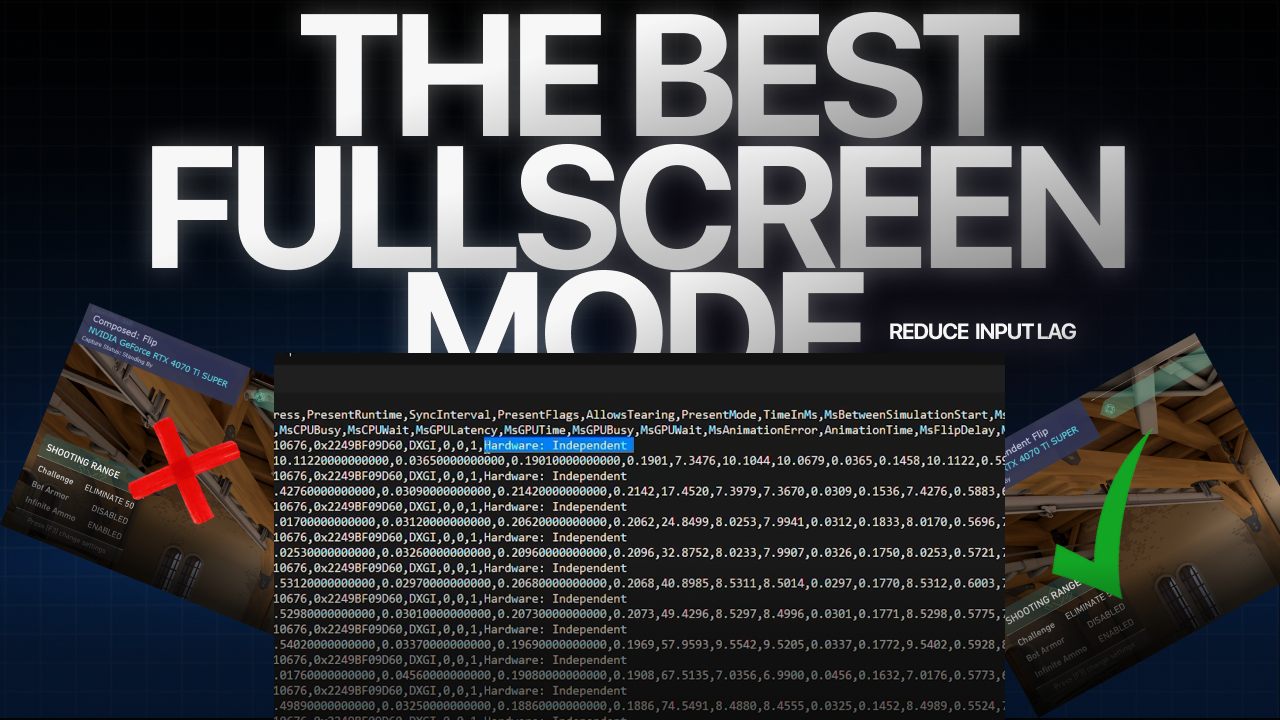
Your game might be running in the worst possible presentation mode right now - and you have absolutely no idea. This one setting is adding input lag that no mouse, no monitor, and no PC upgrade will ever fix. Here's how to check it and correct it in under 60 seconds.
Reduce Input Lag Guides PC Optimization Guides Game Settings Optimization Guides
Windows Optimization · GPU Presentation Mode
Your game might be running in the worst possible presentation mode right now - and you have absolutely no idea. This one setting is adding input lag that no mouse, no monitor, and no PC upgrade will ever fix. Here's how to check it and correct it in under 60 seconds.
What Is Presentation Mode and Why Does It Matter?
Think of presentation mode as the delivery chain between your graphics card and your screen. Your GPU renders a frame - but how that frame gets from your GPU to your monitor depends entirely on the presentation model your game is running.
Frames go directly from your GPU to your monitor. Minimal compositor involvement. No extra processing, no added latency. This is what you want.
Windows intercepts every frame, runs it through DWM (its own compositor), does its own processing, then delivers it. You're not seeing your game - you're seeing what Windows decided to show you after it finished with it.
The old Full Screen Exclusive mode. Not ideal, but significantly better than Compose Flip. Alt-tabs are slower and some overlays won't work. Only use this as a last resort.
How to Check Your Presentation Mode with PresentMon
The overlay version of PresentMon can actually affect your presentation mode while you are checking it - particularly if Multi-Plane Overlay (MPO) is disabled - pushing your game into Compose Flip and giving you a false reading. Always use the CLI version, which runs silently in the background with no overlay and doesn't touch your results.
Get the PresentMon Script
Join the Xilly Discord server to download the PresentMon CLI script - a pre-configured zip with everything you need. No setup, no installation, just extract and run.
Join the Discord →-
1Launch your game in Full Screen
Start your game and make sure it's in Full Screen - not Borderless Windowed. For Call of Duty, use Full Screen Exclusive specifically, as that game has a dedicated setting for it.
-
2Run the script as Administrator
Double-click
PresentMonCheck.batand select Run as Administrator. Press any key when prompted - it will scan active processes on your PC. -
3Select your game and tab back in
Your game will appear at the top of the list. Press its number, then immediately tab back into the game. The script needs your game to actually be running in its presentation mode during the capture - not sitting behind a file explorer window.
-
4Stay in-game for 10 seconds
Play normally for 10 seconds. The script captures data automatically and will generate a CSV file when done.
-
5Open the CSV with Notepad and check the runtime column
Look for the presentation mode column. Hardware Independent Flip - you're good. Composed: Flip - you have a problem. Follow the fix below.
How to Fix Compose Flip
If you're in Compose Flip, the fix is simpler than most people expect. Work through these in order and re-run the script after each change to verify.
Set your game to Full Screen, not Borderless Windowed, not Windowed. This alone fixes the issue for most people. For Call of Duty, the setting is Full Screen Exclusive - make sure you're selecting that specific option.
If you use the Nvidia overlay, open its settings and disable Desktop Capture. That specific feature will push you straight into Compose Flip. Turn it off and relaunch your game before checking again.
Close any overlay you don't actively need while gaming. Here's what's safe and what's not:
Multi-Plane Overlay (MPO) is what allows overlays to coexist with Hardware Independent Flip without pushing your game into Compose Flip. If you have MPO disabled in your system, even some "safe" overlays may cause issues. The Intel PresentMon overlay is a known offender - it forces Compose Flip when MPO is disabled, even if everything else is configured correctly. The CLI version does not have this problem.
Last Resort: Force Hardware Legacy Flip via Registry (DX11 Only)
This method is only for DirectX 11 games (Fortnite Legacy Performance
Mode, Valorant, CS2, etc.) that you cannot get into Hardware Independent Flip any other
way. It does not work for DirectX 12 games - those should already be in
Independent Flip and if they're not, the other fixes above are the right path.
Trade-offs: longer alt-tab times and some overlay features will not work while in Full
Screen Exclusive. Only do this if you've exhausted every other option.
-
1Open Registry Editor
Press
Win + R, typeregedit, press Enter. -
2Navigate to GameConfigStoreHKEY_CURRENT_USER \ System \ GameConfigStore \ Children
-
3Find your game using Ctrl + F
Press
Ctrl + Fto open the find box. Type your game's name (e.g.,Fortnite,Valorant,cs2). Click Find Next. -
4Set the flags value to 211
Find the Flags entry in the result and change its value to
211. This enables Full Screen Exclusive and disables Full Screen Optimizations for that game. -
5Search again for a second entry
Press
Ctrl + Fagain and search for your game name a second time - some games have two entries in the Children key. Set the Flags value to211on any additional matches. -
6Confirm you're done - no restart needed
Press
F3to search again. If it says "Searching the registry..." with no result, you're done. Just restart the game - no PC restart required. To revert, set the Flags value back to11.
Frequently Asked Questions
What is Compose Flip and why is it bad for gaming?
Compose Flip means Windows is intercepting every frame your GPU renders, running it through DWM (Desktop Window Manager), doing its own processing, and then delivering it to your screen. You are not seeing your game frames directly - you are seeing what Windows decided to show you after it finished with them. This adds latency that no hardware upgrade can remove.
What is Hardware Independent Flip and why is it better?
Hardware Independent Flip sends frames directly from your GPU to your monitor with minimal compositor involvement. No extra Windows processing, no added latency. This is the target presentation mode for competitive gaming.
What causes a game to run in Compose Flip?
The most common causes: running in Borderless Windowed instead of Full Screen, the Nvidia overlay's Desktop Capture being enabled, overlays that haven't implemented MPO support correctly, or having MPO disabled while running certain tools like the Intel PresentMon GUI version.
Why use the CLI version of PresentMon instead of the overlay?
The overlay version can push your game into Compose Flip while you're checking it - particularly with MPO disabled - giving you a false reading. The CLI version runs silently in the background and doesn't affect your presentation mode at all.
Does the registry flags 211 fix work for all games?
No - only DirectX 11 games. DirectX 12 games should already be in Hardware Independent Flip and if they're not, the overlay and display mode fixes above are the correct approach. The registry method will not work for DX12 titles.
Is Hardware Legacy Flip good enough?
It's significantly better than Compose Flip and acceptable as a fallback. It's the old Full Screen Exclusive mode - your frames are not going through DWM, so latency is clean. Trade-offs are longer alt-tab times and some in-game overlay features not working. It's not ideal, but it's a legitimate competitive option if Independent Flip isn't achievable.
Professional PC Optimization
Want Your Entire PC Dialed In?
BIOS, Windows, drivers, presentation mode, and everything in between - the complete Xilly stack, done manually for your exact hardware and game setup. Over 10,000 systems optimized for pros and competitive gamers.
Trusted by Bugha, Swizzy, Parasite, and top competitive athletes worldwide.