
Published September 20, 2026 - Updated September 20, 2026 - By Xilly
Remove the Big 3 Motherboard Apps to Reduce Windows Background Processes
Start with unused motherboard utilities: ASUS Armoury Crate, MSI Center with its SDK, and Gigabyte Control Center. Remove what you do not need without breaking hardware controls.
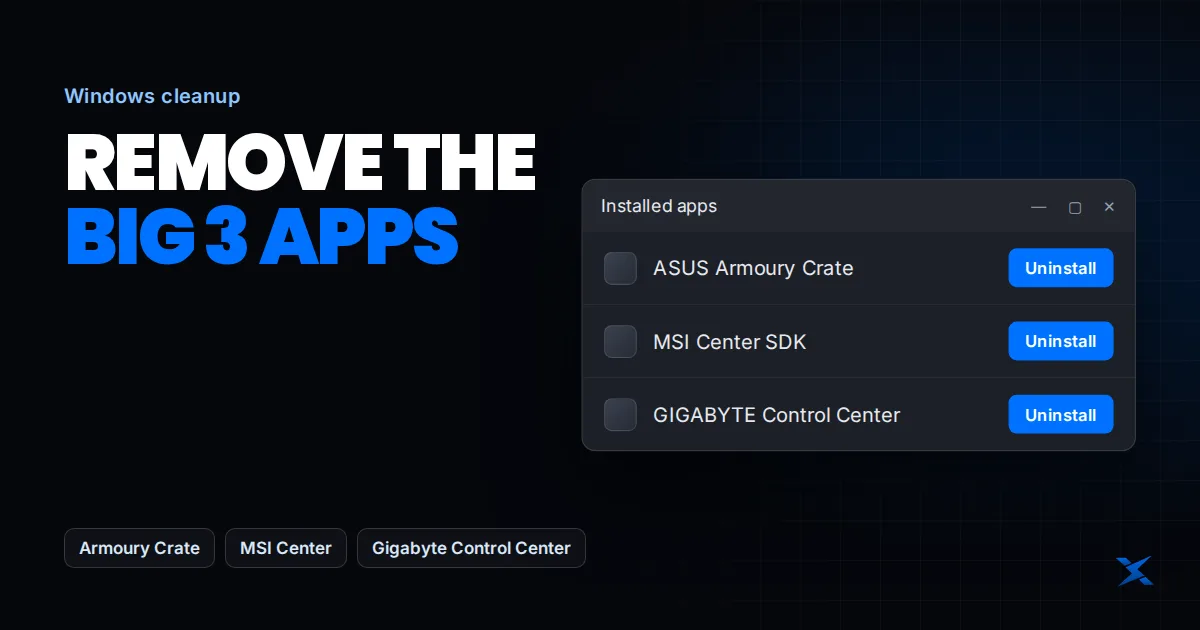
Want fewer background processes on your gaming PC? Start by reviewing software you installed with your motherboard, rather than disabling random Windows services. ASUS Armoury Crate, MSI Center with MSI Center SDK, and Gigabyte Control Center are three software suites worth checking when you do not use their features. You do not need all three installed; remove only the unused software that is actually on your system.
The “30–60 fewer processes” hook is not a guaranteed result or a benchmark demonstrated in this article. Your reduction depends on the utilities, modules and versions installed. A smaller process count is not automatically more FPS: the useful result is less unnecessary background work while your games, cooling and devices still function properly.
The big three: what to look for
| Software suite | What to review before removing it | Removal approach |
|---|---|---|
| ASUS Armoury Crate | Aura lighting, device profiles and hardware controls you use | Use ASUS’s Armoury Crate Uninstall Tool for suite-level removal |
| MSI Center + MSI Center SDK | MSI feature modules and any other application using the SDK | Remove the app and its unused SDK; use MSI’s Clean Center Master if needed |
| Gigabyte Control Center (GCC) | RGB, fan and performance profiles, plus update features | Run its normal uninstaller; review remaining GCC modules separately |
Before uninstalling: keep the controls your PC needs
This guide is aimed at gaming desktops. On a laptop or handheld, a vendor utility may handle power modes, charging limits, hotkeys or graphics switching. Do not remove it without checking the support documentation for the exact model and confirming how those features will work afterward.
- Save your work. Back up important files and save screenshots or exports of profiles you want to keep. Have the model-specific installer available if you need to restore a feature.
- Check what controls your fans and pump. Do not assume a Windows-only fan curve will continue after its application is removed. Where supported, configure and verify cooling in the motherboard BIOS first.
- Keep chipset, graphics, network, audio and storage drivers. A motherboard control application is not the same thing as the drivers your hardware needs.
- Open Task Manager with Ctrl + Shift + Esc. Record idle CPU usage, memory use and process count after the PC has settled. Use the same startup apps and wait time for the after check.
Bulk Crap Uninstaller or Geek Uninstaller: which should you use?
Bulk Crap Uninstaller (BCUninstaller) is useful for reviewing multiple installed applications and finding leftovers. It normally calls the applications’ own uninstallers. Geek Uninstaller is a compact alternative for finding and removing an application, with a leftover scan afterward. Download from these official sites, not a repack or a sponsored download mirror.
Choose one tool; you do not need both. Search for the exact application, verify its publisher, and use the normal Uninstall action first. Remove one suite at a time, follow restart prompts, and check the result before moving on. Do not select every entry containing ASUS, MSI or Gigabyte: that can include software or drivers you still need.
Review proposed leftovers individually. If you cannot establish that a file, folder or registry entry belongs only to the removed application, leave it alone. Force removal is a recovery option for broken uninstallers, not the default method. Do not run a broad registry cleaner afterward.
1. How to uninstall ASUS Armoury Crate
For Armoury Crate, use ASUS’s dedicated removal tool rather than assuming that removing its main app also removes the related services.
- Open the official Armoury Crate support page linked below and locate Armoury Crate Uninstall Tool. Do not download the installation tool by mistake.
- Extract the downloaded archive, run Armoury Crate Uninstall Tool, and follow the prompts.
- Restart Windows, then check Installed apps and Task Manager for remaining Armoury Crate components. If removal fails, follow ASUS’s troubleshooting instructions before attempting manual deletion.
Official instructions: ASUS Armoury Crate installation and removal FAQ. Tool download: Armoury Crate support downloads.
2. How to uninstall MSI Center and MSI Center SDK
Check for both MSI Center and MSI Center SDK in your uninstaller or Windows Installed apps. Depending on the installation, the SDK can appear as a separate entry. Removing the visible application alone is not a reason to assume every associated component is gone.
- Close MSI Center and remove it through its normal uninstaller.
- Check whether MSI Center SDK remains. Remove it only if you no longer use MSI Center or other software that depends on it. Names can differ between MSI software generations; do not remove unrelated MSI entries indiscriminately.
- For a broken or incomplete removal, use the Clean Center Master tool linked in MSI’s motherboard support instructions. Save work first: MSI says the Clean operation automatically restarts the system.
- After restarting, verify the app and unwanted SDK are gone and check any hardware controls you previously used.
Official instructions and tool: MSI’s complete removal procedure. You do not need to follow its reinstall section if your goal is removal.
3. How to uninstall Gigabyte Control Center
Gigabyte Control Center combines hardware features and updates in one application. If you do not need those features, remove the control suite without treating every Gigabyte driver as bloatware.
- Close GCC, including its notification-area application if running.
- In Bulk Crap Uninstaller, Geek Uninstaller, or Settings > Apps > Installed apps, find GIGABYTE Control Center and run Uninstall.
- Review any remaining GCC-related modules. Remove only components you recognize as part of the unwanted suite, keeping tools required by other devices.
- Restart and check cooling, lighting and any device profiles that previously depended on GCC.
Check supported features and recovery downloads on the official Gigabyte Control Center page.
If the motherboard software comes back after a restart
Check whether another vendor updater or an automatic installation prompt is bringing it back. Some motherboards expose a BIOS option for downloading the vendor utility. Consult your exact board’s manual before changing that option; its name and location vary. Disabling a utility installer is different from disabling Windows Update, hardware drivers or security software. Keep those protections and updates in place.
Check the result instead of chasing a process-count target
- Restart, let startup activity settle, and reopen the same apps used for the baseline.
- Compare process count alongside idle CPU and memory usage. Windows updates, browser tabs and background scans can change those numbers between runs.
- Verify fan and pump behavior, temperatures, lighting and peripheral functions. Reinstall the appropriate official utility if an important feature stops working.
- Test the same game scene with the same settings. Check frame-time consistency and 1% lows as well as average FPS. Do not label a single higher run a confirmed performance gain.
If CPU usage remains high, follow our high CPU usage troubleshooting guide. For long startup times, see how to identify the slow stage of Windows boot. For uneven gameplay, use the FPS drops and stuttering checklist. Our performance testing methodology explains how to compare results.
Want the rest of your gaming PC checked?
Removing unused motherboard software is one configuration step, not a full PC optimization. BIOS settings, memory behavior, drivers and game configuration can still be limiting a high-end system. Core covers BIOS, Windows, drivers and game setup; Competitive adds CPU, RAM and GPU tuning. Neither is a promise of a fixed FPS increase.
Compare Core and Competitive optimization and book a session, or start with the free Windows optimization playbook. You can also review published optimization results before choosing a service.
Frequently asked questions
Frequently Asked Questions
Will uninstalling these apps remove 30–60 processes?
Not on every PC. The installed suites, modules and versions determine the reduction. This article does not present a measured 30–60-process result; compare your own before and after under the same conditions.
Can I uninstall Armoury Crate and keep my drivers?
Removing a control suite is different from uninstalling hardware drivers. Use the official Armoury Crate removal tool and keep the chipset, graphics, network and other drivers your devices require. Check any app-dependent controls afterward.
Do I need to remove MSI Center SDK too?
Check whether it remains after removing MSI Center. If you no longer use software that requires the SDK, remove it as part of the suite cleanup. MSI provides Clean Center Master for a clean removal.
Will uninstalling Gigabyte Control Center stop my fans?
Do not assume a software-controlled cooling profile survives removal. Confirm how your fans and pump are controlled, configure supported BIOS controls if appropriate, and verify temperatures and fan behavior after restarting.
Does a lower process count guarantee more FPS?
No. What the processes are doing matters more than their count. Measure actual CPU load and game performance rather than disabling useful Windows or security services to reach a target number.