
Published September 10, 2026 - Updated September 11, 2026 - By Xilly
Why Does My PC Take So Long to Start? Fix Slow Windows Boot Times
Time the stage before Windows, the login screen and the desktop separately. Startup apps cannot explain every long boot, especially on DDR5 systems.
PC Optimization Guides BIOS Optimization Guides
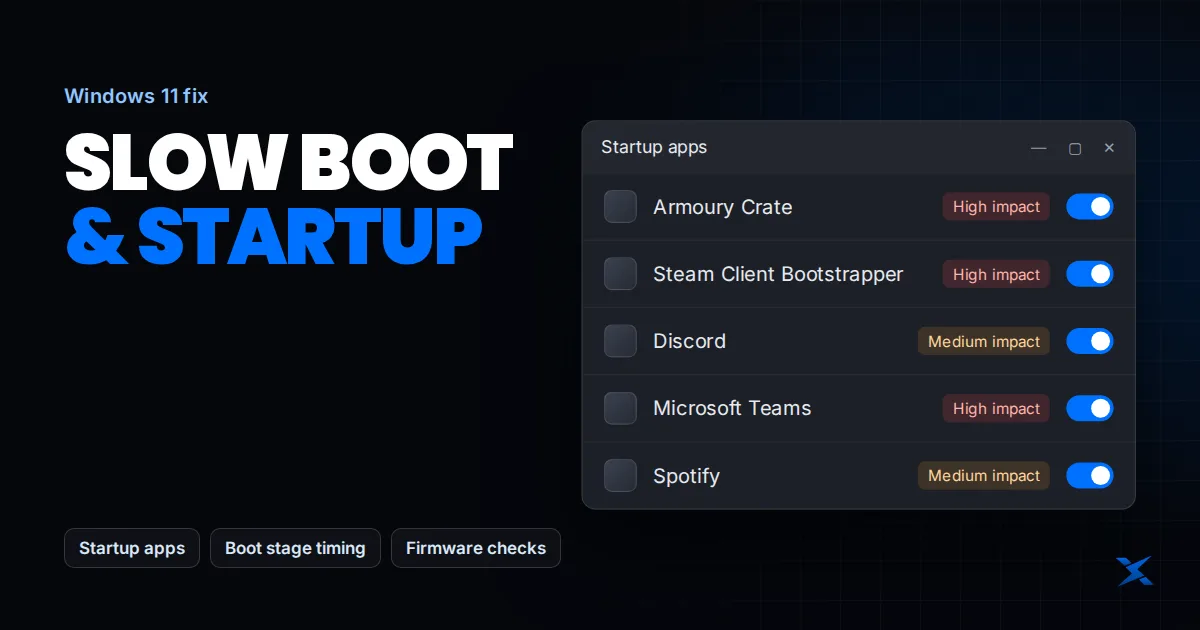
If your PC takes forever to start, identify which part of startup is slow. Time before the motherboard logo, time loading Windows, and time after sign-in are different stages. Disabling startup apps may help a busy desktop after login, but it will not fix a long firmware memory-training sequence before Windows loads.
Measure the stage instead of guessing
| Slow stage | Likely investigation | Useful evidence |
|---|---|---|
| Power button to firmware/logo screen | POST, device initialization or memory training | Motherboard debug indicator and recent BIOS changes |
| Windows loading to sign-in | Storage, drivers or update processing | Errors and whether it follows an update |
| Sign-in to usable desktop | Startup apps, sync and security workloads | Task Manager activity after login |
| Resume from sleep only | Resume behavior rather than ordinary boot | Whether a normal restart also has the issue |
Compare like with like. A restart, a shutdown followed by power-on, and waking from sleep can take different paths. Keep the comparison method, connected devices and workload consistent. Do not compare a first boot after a firmware change with an ordinary boot and assume the system has permanently become slower.
Reduce unnecessary sign-in applications
- Open Settings > Apps > Startup, or Task Manager > Startup apps.
- Review the application names and startup-impact information. Identify launchers or optional utilities you do not need immediately.
- Disable only those optional items and record the original state. Leave required security, accessibility and device-control software alone.
- Restart and time sign-in to a usable desktop again. Re-enable an item if disabling it breaks a needed function or makes no useful difference.
Official references: Microsoft: configure startup applications.
Startup impact is a clue, not a guaranteed saving in seconds. Several programs may start together, and their work can overlap. If the desktop still stays busy, identify the active process rather than adding more startup restrictions. A cloud client may be checking changed files, while a game launcher may be patching content.
Understand DDR5 memory training before changing BIOS
On AM5 systems, a memory-training stage can extend POST, particularly after memory or firmware changes. ASUS documents Q-Code 15 and DRAM indicators in this context. Follow the exact motherboard manual and allow a training cycle to finish rather than repeatedly cutting power. Duration and indicators vary with the board, memory configuration and firmware; there is no universal ten-second target.
Official references: ASUS: AM5 memory training and Q-Code 15.
AM5 taking too long before Windows? Try Memory Context Restore
If the delay is repeated memory training and the PC is otherwise stable, enabling Memory Context Restore on a supported AM5 board can shorten later boots by reusing training information. It does not fix slow startup apps, and the first training cycle can still take time.
- Record your current BIOS settings and keep your BitLocker recovery key available.
- Check the manual for your exact motherboard and BIOS. Find Memory Context Restore using BIOS search or the documented memory-settings menu; paths differ between brands.
- Set it to Enabled if supported, save, and let the first boot finish. Follow any model-specific instructions for related memory options rather than copying another board’s settings.
- Test cold starts, restarts, sleep/resume and normal use. If crashes or boot failures begin, restore the previous setting using the board’s documented recovery procedure. Resolve memory instability before trying again.
Manufacturer reference: MSI’s Memory Context Restore guidance for supported AM5 boards.
Memory Context Restore is a firmware option on supported platforms, not a Windows startup-app fix. Do not enable it blindly on an unstable configuration to shorten boot. Review model-specific guidance and validate cold boots, restarts and normal use after changes. Preserve your BitLocker recovery key first, and avoid changing storage-controller or TPM settings as part of a generic boot-speed checklist.
Official references: Microsoft: find your BitLocker recovery key.
Check storage and update-related delays
If Windows itself takes a long time to load, review drive health, available storage and any repeated errors. An older mechanical system drive can be a practical performance limit, but a slow SSD still deserves diagnosis before replacement. Back up before drive migration. If the problem began with a Windows update and persists after completion, use Microsoft’s recovery options relevant to that change rather than disabling future updates.
Official references: Microsoft: Windows recovery options.
Continue with persistent disk activity and drive-health checks.
If the PC hangs rather than merely boots slowly
A machine that eventually starts and works normally is different from one stuck indefinitely with a debug error or restart loop. Record the displayed code and seek the board or PC maker’s guidance. Do not change msconfig’s processor count or maximum-memory fields to “unlock” hardware. Do not remove unfamiliar boot entries or disconnect the Windows drive to experiment.
Before requesting help, report the motherboard or laptop model, Windows version, memory layout, system-drive model and which stage consumes time. Include whether the issue happens every boot or only after settings change. That context lets a technician investigate the correct layer rather than selling cleanup work for a firmware delay.
Frequently Asked Questions
Why is my new gaming PC slow to boot?
Some DDR5 configurations spend time in firmware memory training before Windows loads. Separately, startup applications can delay usability after sign-in. Measure the stage first.
Should I enable every fast-boot setting?
No. Firmware and Windows settings affect different stages and can have compatibility or troubleshooting tradeoffs. Follow model-specific guidance and prioritize reliable startup.