
Published September 10, 2026 - Updated September 11, 2026 - By Xilly
Why Is My CPU Usage So High? How to Lower It
High CPU usage is not automatically a fault. Diagnose sustained background load, game bottlenecks and clock-speed problems before applying a fix.
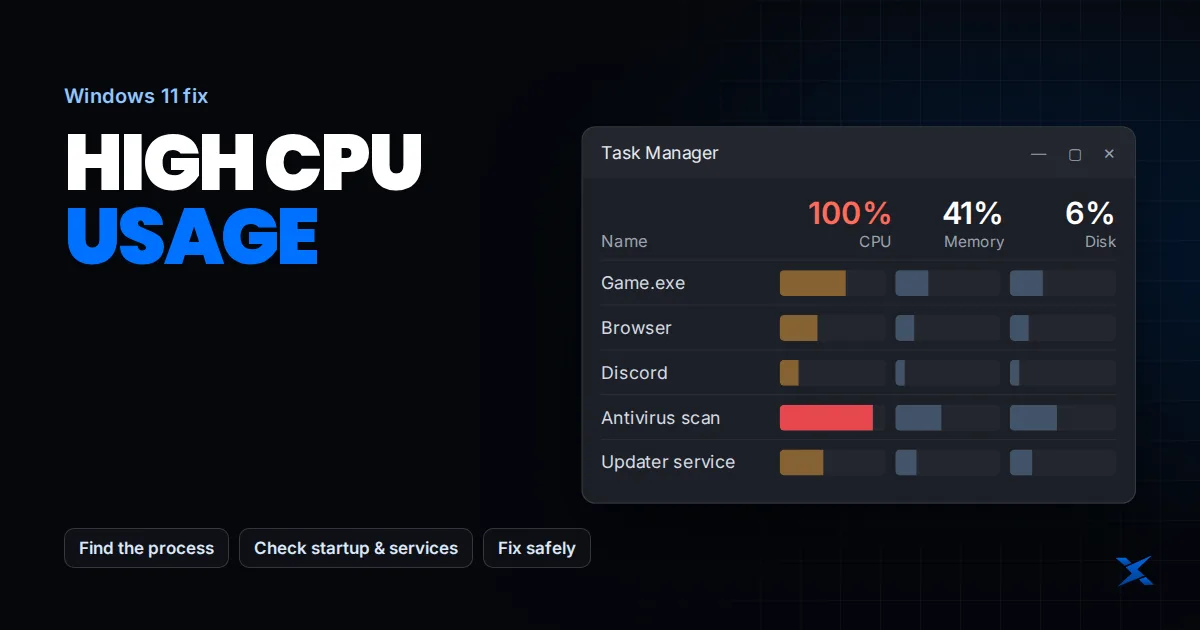
High CPU usage means the processor is spending much of its available time on work. That can be normal during rendering, game shader compilation or a heavy game, but unexplained sustained activity at idle deserves investigation. To lower CPU usage safely, identify the task creating the load rather than limiting the whole CPU or turning off Windows protections.
Find the process while the problem is happening
- Open Task Manager with Ctrl + Shift + Esc. Select Processes and sort by CPU from highest to lowest.
- Watch for a sustained pattern, not the brief spike caused by opening an app or Task Manager itself.
- Note the application, whether it is actively doing useful work, and whether responsiveness is actually impaired.
- Save work before closing a user application. Do not terminate Windows system processes just because they appear near the top.
Official references: Intel: troubleshooting high CPU usage.
Interpret the workload before trying to reduce it
| What is busy? | What to check | Useful next step |
|---|---|---|
| A game at an uncapped frame rate | Whether it is CPU-limited or producing unnecessary frames | Compare a sustainable in-game FPS cap |
| Browser or app with many tasks | Tabs, extensions, plugins or background jobs | Close one optional workload and retest |
| Installer, update or shader compilation | Progress and whether it completes | Retest after the job finishes |
| Unknown process at idle | Publisher, installed app and security scan results | Investigate before deleting or stopping it |
| System interrupts or kernel activity | Recent devices and drivers | Collect a trace or contact technical support |
A lower percentage is not automatically better performance. A faster completed task may briefly use more CPU than a slower configuration. Conversely, a CPU running at reduced clocks may struggle even though no single application looks unusual. Compare the time to complete your task and the responsiveness of the PC, not just the number in one column.
Why a game can be CPU-limited below 100% total usage
The total percentage averages work across logical processors. A game can depend on a busy main thread while other cores are less occupied. Lowering resolution mainly changes graphics work, so it may not help much in that situation. Test CPU-heavy game options, optional background recording and a sensible frame cap one at a time. More GPU utilization is not the objective if the game already meets your frame-rate target smoothly.
Continue with the FPS-drop and frame-time checklist.
Reduce unnecessary work without breaking Windows
Update the application responsible and check its own background settings. Disable startup for applications you do not need at sign-in through Settings > Apps > Startup or Task Manager > Startup apps. Keep security, accessibility and required device utilities enabled. Make a record so an app can be restored if a feature stops working.
Official references: Microsoft: configure startup applications.
For an unexplained process, use Windows Security to scan rather than downloading a “CPU fixer.” Do not assume a Microsoft-looking name proves legitimacy, or that an unfamiliar name proves malware. Repeated activity by security software needs investigation of its workload and configuration, not a permanent exclusion for the entire system drive.
Official references: Microsoft: Windows Security scans.
Check heat and recent changes
If the PC becomes slower after several minutes, compare temperature and clock behavior during the same workload. A fan or cooling problem needs attention before an overclock. If the problem began after connecting a device or installing a driver, test that change through the manufacturer’s documented options. Persistent kernel or interrupt activity may require deeper tracing; the visible process list is only the first step.
Continue with the cooling checks.
Avoid fixes that only hide the symptom
Do not set arbitrary processor limits in msconfig, force every process to real-time priority, disable security features, or run unexplained registry packs. Those changes can create new problems and make diagnosis harder. A generic “100% CPU fix” cannot distinguish a legitimate render job from a driver fault or malware. Keep notes, reverse unhelpful changes, and test the original workload again.
Frequently Asked Questions
Is 100% CPU usage bad while gaming?
Not necessarily. It matters whether performance, temperatures and responsiveness are acceptable. An uncapped game can legitimately use substantial CPU resources.
Why is CPU usage high when nothing is open?
Background apps, updates and security tasks can still run. Identify the sustained process and investigate unexplained activity instead of disabling services at random.