
Published September 10, 2026 - Updated September 11, 2026 - By Xilly
Why Is My PC Overheating and Why Is the Fan So Loud?
A loud fan does not automatically mean overheating. Compare workload, temperature and clock behavior, then check cooling without disabling thermal protection.
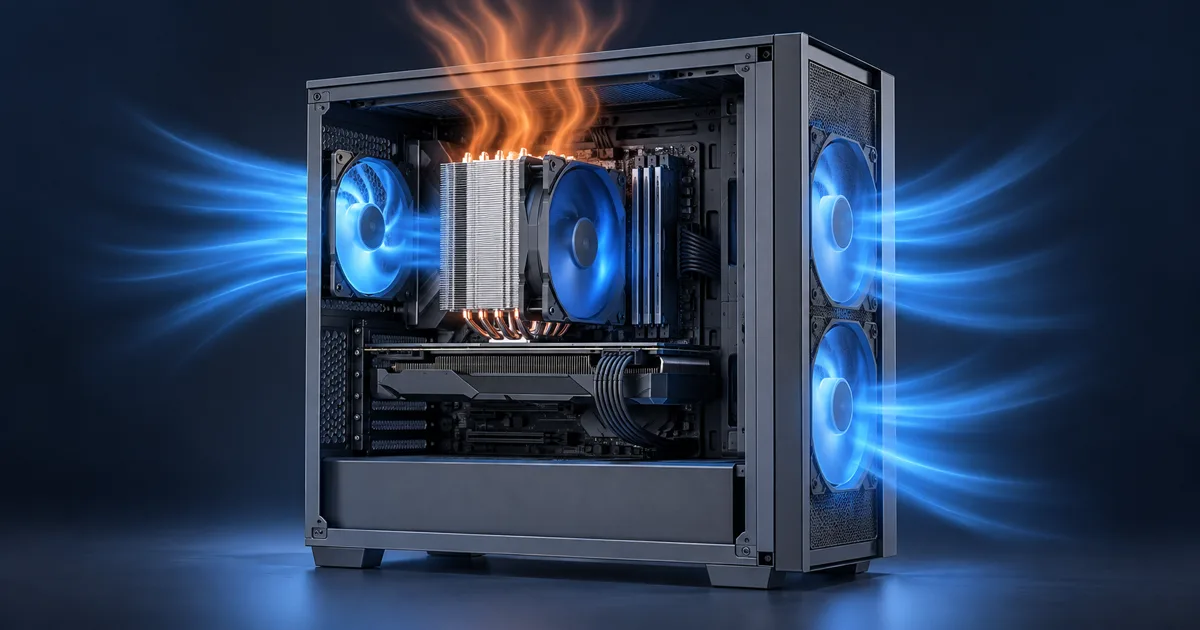
Image source: AI-generated editorial illustration for Xilly; not a customer system or diagnostic result.
A PC fan gets louder when its controller requests more cooling, but noise alone does not prove that the PC is overheating. Look at the workload, temperature trend and clock behavior together. A CPU running hot during a demanding task needs a different investigation from a suddenly loud fan while the desktop is idle.
Stop immediately for physical warning signs
Shut down and seek qualified help if you notice smoke, a burning smell, liquid leakage, visible connector damage or a swollen laptop battery. Do not open a power supply, puncture a battery or keep stress-testing a machine that repeatedly shuts itself off. Performance tuning is not a repair for these conditions.
Distinguish normal cooling from a problem
| Observation | Possible explanation | Next check |
|---|---|---|
| Fans rise during a game, then settle | Normal response to increased heat | Performance and temperatures against model limits |
| Fans loud with no obvious workload | Background work or an aggressive fan profile | Task Manager and the configured control mode |
| Temperature climbs while clocks fall | Possible thermal limiting | Cooling operation and reported limit reason |
| Rattling, scraping or grinding | Mechanical fan or obstruction issue | Power off before inspection or service |
| Sudden heat after cooler installation | Mounting, connection or pump/fan issue | Installer and cooler-manufacturer checks |
Measure the right temperature for your component
Use monitoring software that supports your exact hardware and compare readings against the component maker’s specifications. CPU package, GPU core and GPU hotspot are different sensors. Modern processors can intentionally boost toward thermal limits, so one generic temperature threshold is not a diagnosis. Repeated throttling, unstable behavior or a change from the same system’s previous behavior is more useful evidence.
Official references: Intel: overheating symptoms and cooling checks.
Record ambient conditions and the workload alongside the reading. A warm room and a sustained render are not comparable with an idle screenshot from a cool morning. If the monitoring tool reports a limit reason, distinguish a thermal limit from a power limit rather than assuming every clock reduction is overheating.
Restore airflow before buying a new cooler
Keep a laptop on a hard surface with intake and exhaust vents unobstructed. Give a desktop’s vents clearance rather than enclosing it in a cramped cabinet. Dust filters and blocked vents are practical inspection points. These checks do not require disabling safety settings or opening a sealed component.
Official references: Dell: preventing PC and laptop overheating.
Before cleaning, shut down, unplug the computer and follow its service manual and the cleaning product instructions. Use appropriate compressed air in short bursts and avoid overspinning accessible fan blades. Do not use a household vacuum on internal electronics or spray liquid into vents. If internal access is needed and you are not comfortable with the service procedure, use a technician.
Official references: Dell: safely cleaning a laptop fan.
Check cooler fit, mounting and thermal paste before buying more fans
If temperatures became abnormal immediately after assembly, transport or a cooler change, prioritize installation checks. With the PC shut down and unplugged, have a competent installer verify the correct socket bracket and standoffs, even mounting pressure, removal of any protective film from the cooler base, and thermal-interface application according to the cooler manual. Reapply the specified thermal material when remounting; do not simply add more paste on top of the old layer.
Check that the cooler is suitable for the processor’s sustained workload and fits the case with adequate ventilation. If a correctly installed, functioning cooler still cannot handle that workload at supported settings, upgrading the cooler is more appropriate than paying for software tweaks to hide overheating. A failed pump or fan needs repair or replacement. Avoid opening a power supply or handling liquid metal as a beginner fix.
Manufacturer reference: Intel’s cooling compatibility and installation checks.
Check fan and pump operation safely
After powering on normally, check available fan or pump readings in firmware or the manufacturer’s utility. A missing reading is a clue to investigate, not universal proof of failure; connections and reporting vary. A liquid cooler needs the pump and fans connected and configured according to its manual. If heat appeared immediately after assembly, ask the installer to verify mounting and connections before running another heavy test.
Adjust fan curves without hiding overheating
Fan curves trade noise against cooling. Use the board or laptop maker’s supported controls and choose a suitable profile, then observe a representative workload. A Turbo preset can be a reasonable comparison where the manufacturer provides it; names and behavior are not standardized. Do not set a low fixed fan speed just to silence a warning sign, and do not assume full speed is necessary at idle.
An FPS cap can reduce unnecessary work when a game is producing frames you do not need. Power limiting or undervolting can also change heat and performance, but neither should be used to conceal a defective cooling system. Any tune requires stability and performance checks. Start with healthy cooling and a supported baseline, not an aggressive preset copied from a different processor.
Continue with unexpected background CPU-load checks.
What to record before asking for help
Provide the CPU/GPU model, cooler or laptop model, the task that causes the noise, sensor names, observed clocks, and whether the behavior is new. Mention recent cleaning, transport, assembly or firmware changes. Do not claim a successful repair from one lower idle reading; repeat the original workload and check that performance and stability are acceptable.
Frequently Asked Questions
Is a loud PC fan always a bad sign?
No. Fans often become louder under load. New mechanical noises, repeated shutdowns or abnormal temperature behavior are stronger reasons to investigate.
What CPU temperature is too hot?
Use the specification for the exact processor and interpret the sensor, workload and clock behavior together. There is no single limit that applies to all desktop and laptop CPUs.
Can optimization fix a broken cooler?
No. A failed fan, pump or improperly mounted cooler needs physical correction. Tuning comes after the cooling system is functioning correctly.