
Published September 10, 2026 - Updated September 11, 2026 - By Xilly
How to Fix the Blue Screen of Death (BSOD) in Windows 11
A Windows stop code is a clue, not a complete diagnosis. Use a safe sequence to investigate “your device ran into a problem” errors without guessing at drivers.
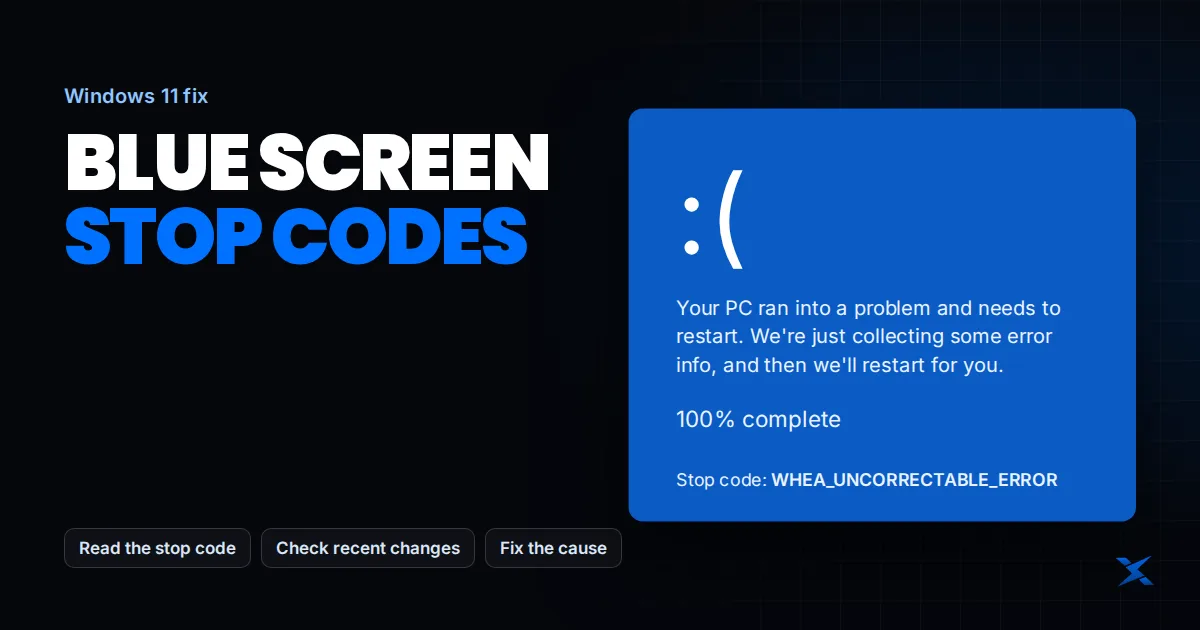
A blue screen of death means Windows encountered an error serious enough to stop normal operation. The message “your device ran into a problem” can result from a driver, software conflict, hardware fault or unstable configuration. The Windows stop code helps narrow the investigation, but it is not a command to replace the component named by an online search.
Record the evidence before trying fixes
- Photograph the stop code and any “What failed” filename. Note the time, active application and whether the crash happened at startup, under load or at idle.
- If Windows starts, back up important files before additional troubleshooting.
- Record recent driver, hardware, BIOS and tuning changes. Investigate the most relevant change first.
- Disconnect a recently added nonessential external device with the PC safely shut down, then test again.
Official references: Microsoft: resolving stop-code errors.
What common stop codes do—and do not—tell you
| Stop code | What to check first | Do NOT conclude this |
|---|---|---|
| MEMORY_MANAGEMENT | Memory configuration, drivers and crash context | Do not replace RAM just because this code contains “memory.” An unstable memory setting or driver can also be involved. |
| IRQL_NOT_LESS_OR_EQUAL | Driver activity and memory access in the dump | Do not apply a random registry fix. Identify the driver or memory-access problem from the crash evidence. |
| WHEA_UNCORRECTABLE_ERROR | Hardware error records, tuning and platform stability | Do not assume the CPU is defective. Remove unstable tuning and inspect the hardware error record before replacing parts. |
| VIDEO_TDR_FAILURE | Graphics driver, GPU stability, temperature and power | Do not assume a driver update will fix everything. GPU instability, cooling or power problems can require a different fix. |
These are investigation categories, not one-to-one diagnoses. A damaged or unstable component can corrupt data that another driver later uses. Likewise, a kernel filename appearing in the crash does not prove that Windows itself is the root cause. Repeated patterns across several crashes are more useful than a single highlighted filename.
Check changes and remove tuning as a variable
If crashes began after a graphics or device-driver update, check the manufacturer’s support notes and rollback options. Obtain replacements from the PC, motherboard or device maker—not a generic driver-updater website. Test with CPU/GPU overclocks and undervolts removed. If memory tuning is involved, compare with the manufacturer-supported baseline rather than increasing voltage to suppress the symptom.
Before changing firmware settings, record the current configuration and confirm access to your BitLocker recovery key. Do not blindly reset storage-controller modes, clear the TPM or change boot settings; those can create a separate boot or encryption problem. If you cannot confidently reverse a change, use the manufacturer’s support process.
Official references: Microsoft: find your BitLocker recovery key.
If Windows will not stay open
Use Windows Recovery Environment and Microsoft’s recovery guidance. Safe Mode can help test whether a normal-startup driver or service is involved; it is not a permanent gaming setup. Recovery choices differ: Startup Repair addresses startup problems, while System Restore or uninstalling a recent update may help with a specific recent regression. Do not jump straight to a reset without a backup and a clear understanding of which files and applications it removes.
Official references: Microsoft: Windows recovery options.
Inspect crash dumps when the cause remains unclear
Windows may save small dumps in C:\Windows\Minidump, depending on crash-dump settings and whether it can write to storage. A technician can open them in Microsoft WinDbg and use its analysis tools. The analysis must be interpreted with the hardware configuration and crash history; an automated “probably caused by” line is not a final verdict. Crash dumps may contain private information, so share them only through a trusted support channel.
Official references: Microsoft: analyze a crash dump with WinDbg.
When to stop troubleshooting and arrange repair
A repeatable crash at supported stock settings, failed hardware diagnostics, storage warnings or a machine that cannot remain powered on warrants manufacturer or repair support. Avoid aggressive stress testing if the PC is overheating or the drive may be failing. Gaming optimization should come after stability is established, not be sold as a guaranteed cure for a defective component.
Frequently Asked Questions
Can I keep using my PC after one blue screen?
Back up important data and record the error. A single event may not recur, but repeated crashes or drive warnings need investigation rather than repeated forced restarts.
Will reinstalling Windows fix BSOD errors?
It can resolve some software problems, but it will not repair defective hardware or an unstable firmware configuration. Preserve evidence and backups before choosing recovery.