
Published September 10, 2026 - Updated September 11, 2026 - By Xilly
How to Fix 100% Disk Usage in Windows 11
100% disk activity does not mean the drive is full. Check the workload and response time before disabling services or replacing an SSD.
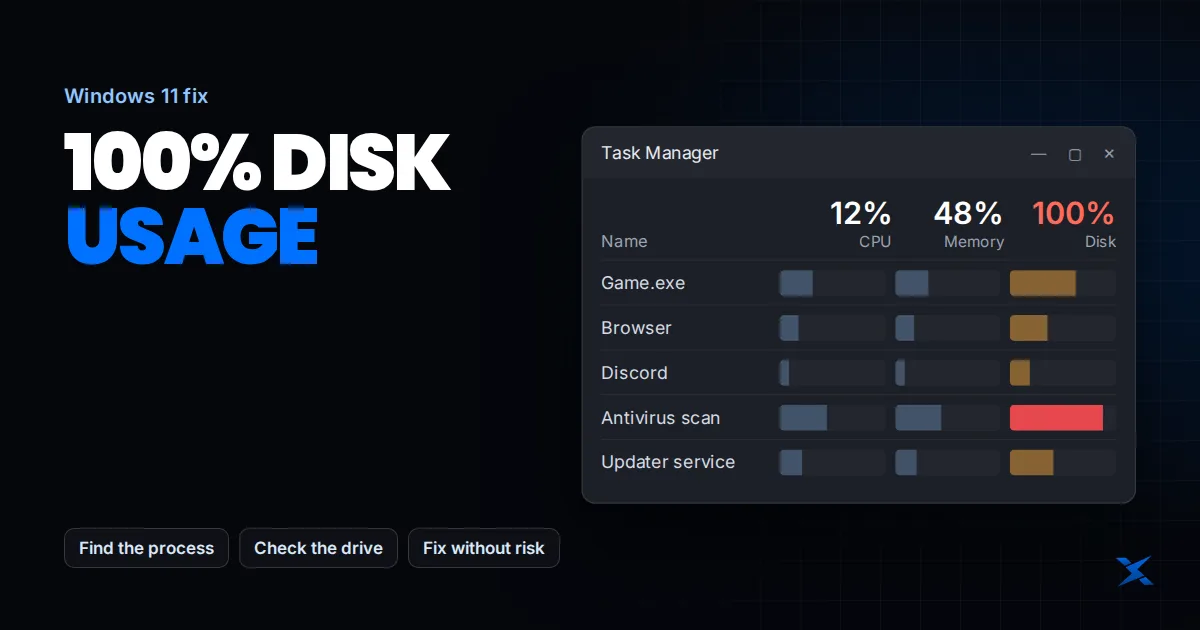
In Windows 11 Task Manager, 100% disk usage generally means the drive is busy handling requests, not that all its storage space is occupied. A drive can show high active time with a low MB/s figure when many small operations or slow responses keep it busy. A brief spike during a game installation is different from persistent saturation while the PC sits idle.
Check activity, throughput and free space separately
If Windows is installed on a mechanical hard drive and that drive stays saturated during ordinary use, moving Windows and your frequently used applications to a compatible SSD is the practical upgrade to prioritize. Adding an SSD only for file storage will not speed up Windows if it still boots from the hard drive. Back up first and arrange a supported migration or fresh installation; keep the original drive intact until your files and the new installation are verified.
- Press Ctrl + Shift + Esc, open Processes, and sort by Disk while the slowdown is happening. Record the process name.
- Open Performance > Disk and check which physical drive is busy. Record active time, read/write speed and response time together.
- Open Resource Monitor from Start, select Disk, and inspect the processes and file paths involved. Do not delete unfamiliar system files shown there.
- Separately check Settings > System > Storage for free space. A nearly full drive and high active time can coexist, but they are not the same measurement.
Official references: Microsoft: performance-counter troubleshooting concepts.
Match the workload to the least disruptive fix
| Activity you identify | First action | What to avoid |
|---|---|---|
| Game installation or patching | Let it finish, then repeat the same workload | Judging idle performance during decompression |
| Cloud sync or backup | Pause through its app briefly, then resume | Deleting the synced folder to stop activity |
| Security scan | Check scan progress and schedule conflicts | Turning off antivirus as a permanent fix |
| Low available memory plus paging | Reduce optional apps and investigate memory use | Disabling the page file |
| Unexplained activity with errors | Back up and inspect drive diagnostics | Running repeated write-heavy benchmarks |
Do not select every busy process and click End task. The disk may be processing an important update, save or backup. If an optional workload is responsible, schedule it away from gaming or work hours. A useful fix should improve responsiveness after controlling that workload, not merely make the Task Manager graph look quieter.
When System is using the disk
The System process can represent kernel-level work rather than one removable app. Investigate the file paths and what was happening at the time. If activity coincides with low memory and app switching, look at paging. If it follows a driver change or storage error, collect that evidence for support. The process name by itself does not justify disabling a Windows service.
Keep the page file system-managed as a troubleshooting baseline unless an application or support engineer requires something specific. Page files support committed memory and can be needed for crash dumps. Removing one can turn a slowdown into an allocation failure or make crash investigation harder. More free disk space helps accommodate normal growth; it does not replace physical RAM.
Official references: Microsoft: determining page-file requirements.
Continue with the memory-pressure guide.
Check drive health before aggressive repairs
If Windows reports degraded reliability, low spare capacity or a drive becoming read-only, back up important files and seek support. Windows’ built-in critical storage warnings cover supported NVMe SSDs, not every SATA SSD or hard drive. The absence of a Windows warning is therefore not proof of a healthy drive. Use the drive manufacturer’s diagnostics for your exact model.
Official references: Microsoft: critical storage-device warnings.
A disappearing drive, repeated I/O errors, unusual mechanical noises or rapidly worsening access failures are reasons to stop optional workloads. If the files are irreplaceable and not backed up, ask a data-recovery professional before lengthy repair scans. Do not format the drive or run destructive repair operations simply because a tutorial mentions 100% disk usage.
Why a fast SSD can still show 100% activity
A budget SSD can slow down during sustained writes or when it has little free space. Some DRAM-less models are more sensitive to particular workloads, but lacking dedicated DRAM does not mean the drive is worn out: many NVMe designs use Host Memory Buffer (HMB) to help manage mapping data. Check the exact model, available capacity, temperatures, firmware and manufacturer health diagnostics. Replace a failing drive; consider a better-suited SSD when a healthy drive is consistently the bottleneck. Do not replace it solely because of its age or the words “DRAM-less.”
Technical reference: Research on Host Memory Buffer in DRAM-less NVMe SSDs.
Headline sequential speeds do not describe every workload. An SSD can be busy with small operations, installation work or competing applications. Check the exact drive, workload and temperature before concluding that its advertised speed is false. Compare after the background job finishes; copying a different file from a different source is not a controlled retest.
Do not use blanket service-disable fixes
Disabling SysMain, Windows Search, updates or antivirus across every PC can hide useful functions without identifying the cause. If a specific service is implicated, use a documented, reversible diagnostic step and check the result before making it permanent. Back up before storage firmware changes and follow the manufacturer’s procedure. Software optimization cannot restore worn or physically damaged storage.
Frequently Asked Questions
Why is disk usage 100% but only a few MB/s?
The drive can be occupied with small requests or long response times rather than large sequential transfers. Inspect activity, throughput, workload and health together.
Should I disable the page file to stop disk usage?
Not as a generic fix. Investigate memory demand first; disabling the page file can reduce the commit limit and interfere with crash dumps.