
Xilly
Valorant Input Lag Fix and Latency Optimizer
Valorant input lag fixes start with frame times, background load, driver settings, and CPU behavior because the game can show high FPS and still feel delayed.
Input lag optimization Windows and DPC latency optimization Windows gaming optimization Gaming PC stutter fix
Valorant FPS proof
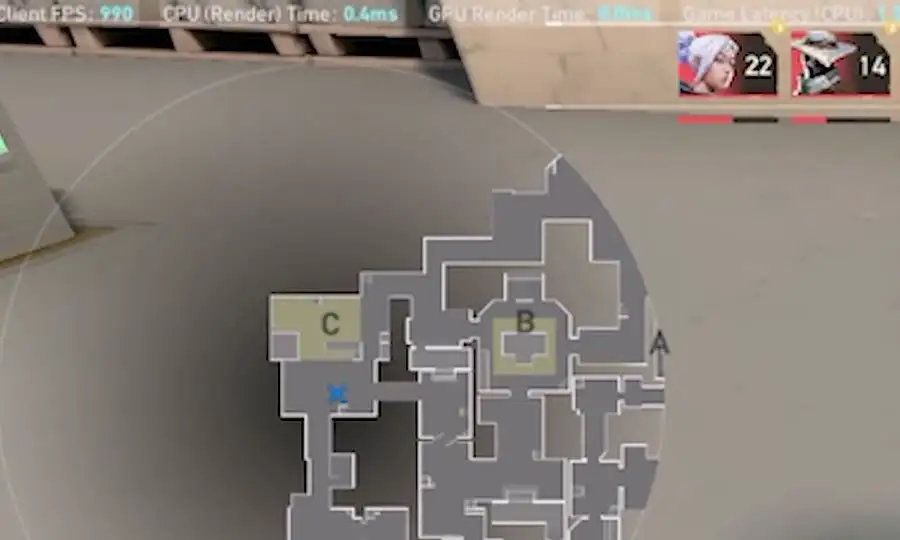
Watch the Valorant FPS result clip from the benchmark carousel, then open the full optimization results playlist on TikTok.
Who this page is for
Best for Valorant players who see FPS drops, inconsistent 240 Hz feel, or mouse movement that feels heavy compared to their specs.
- Xilly tunes for frame-time consistency and responsiveness, not just a bigger uncapped FPS number in the practice range.
Why Valorant can feel delayed
Valorant is light enough to expose system problems. If Windows scheduling, overlays, power settings, or driver behavior are wrong, the game can feel sluggish even on strong hardware.
- Frame-time consistency review
- Windows and background service tuning
- GPU control panel settings checked
- Competitive settings reviewed for your monitor and system
Anti-cheat safe tuning
Valorant has strict anti-cheat requirements. The tuning has to respect that instead of blindly disabling every security or virtualization setting.
- No risky tweaks that break Vanguard requirements
- Settings chosen around compatibility and stability
- Clear guidance when a BIOS option affects an anti-cheat
Frequently asked questions
Why does Valorant feel bad with high FPS?
Average FPS does not show frame-time spikes. A few bad spikes can make mouse input feel inconsistent even when the counter looks high.
Will you disable settings that Valorant needs?
No. Any setting that can affect anti-cheat compatibility is treated carefully and explained.