
Veröffentlicht July 7, 2026 - Aktualisiert July 7, 2026 - Von Xilly
Updated NVIDIA Optimization Guide
Start with the driver, check GPU-Z, verify your PCIe connection, then set up the NVIDIA App for cleaner FPS, lower delay, and fewer setup mistakes. Diese Version ist für deutschsprachige Nutzer lokalisiert. Einige technische Begriffe bleiben zur Genauigkeit auf Englisch.
Diese Version ist für deutschsprachige Nutzer lokalisiert. Einige technische Begriffe bleiben zur Genauigkeit auf Englisch.
GPU-Optimierung PC-Optimierungs-Guides Input Lag Reduzieren Spiel-Einstellungen

NVIDIA Optimization Guide · 2026 Update
Most NVIDIA guides tell you to change settings. This guide tells you to start with the driver. A dirty driver install, a GPU running at the wrong PCIe speed, or a bad slot will cancel out every setting in this guide. Fix those first. Then tune the NVIDIA App.
This pack has DDU, NVCleanstall, and GPU-Z already inside. One zip. No searching random sites. No guessing what is safe to download.
Download the pack. Unzip it to your desktop. Start with DDU.
Do This In The Right Order
Order matters. If you skip straight to NVIDIA App settings without cleaning the driver first, old driver leftovers can still break your FPS and cause stutters. Follow these three steps before changing any settings.
Use DDU to fully remove the old NVIDIA driver. Takes two minutes and prevents a lot of problems.
Use NVCleanstall to install only the driver parts you actually need.
Check Bus Interface in GPU-Z to confirm your card is running at the right PCIe speed before touching any settings.
Step 1 — Remove The Old Driver With DDU
Open DDU from the pack. Set device type to GPU and manufacturer to NVIDIA. Click Clean and Restart.
The normal Windows uninstaller leaves behind driver files, registry entries, and old profiles. DDU removes all of that. Stutters, broken settings, and FPS that does not match your hardware often trace back to dirty driver leftovers.
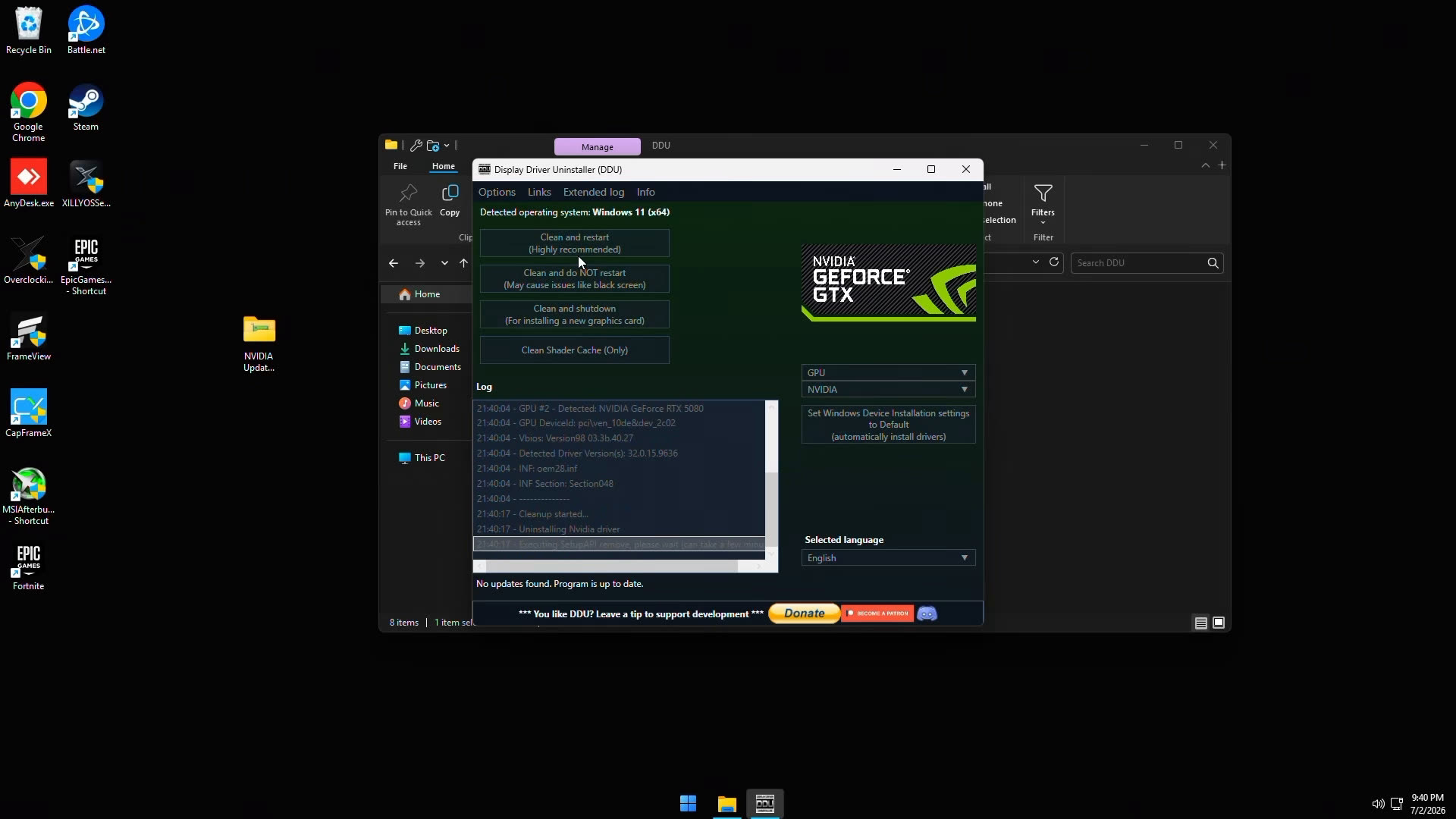
- 1Open DDU from the pack
Extract the zip to your desktop. Open the DDU folder and run the program.
- 2Set GPU and NVIDIA
Device type = GPU. Manufacturer = NVIDIA. Both dropdowns on the right side of the DDU window.
- 3Click Clean and Restart
Let the PC restart fully. Do not install a new driver until the PC comes back up. Then open NVCleanstall.
Step 2 — Install A Clean Driver With NVCleanstall
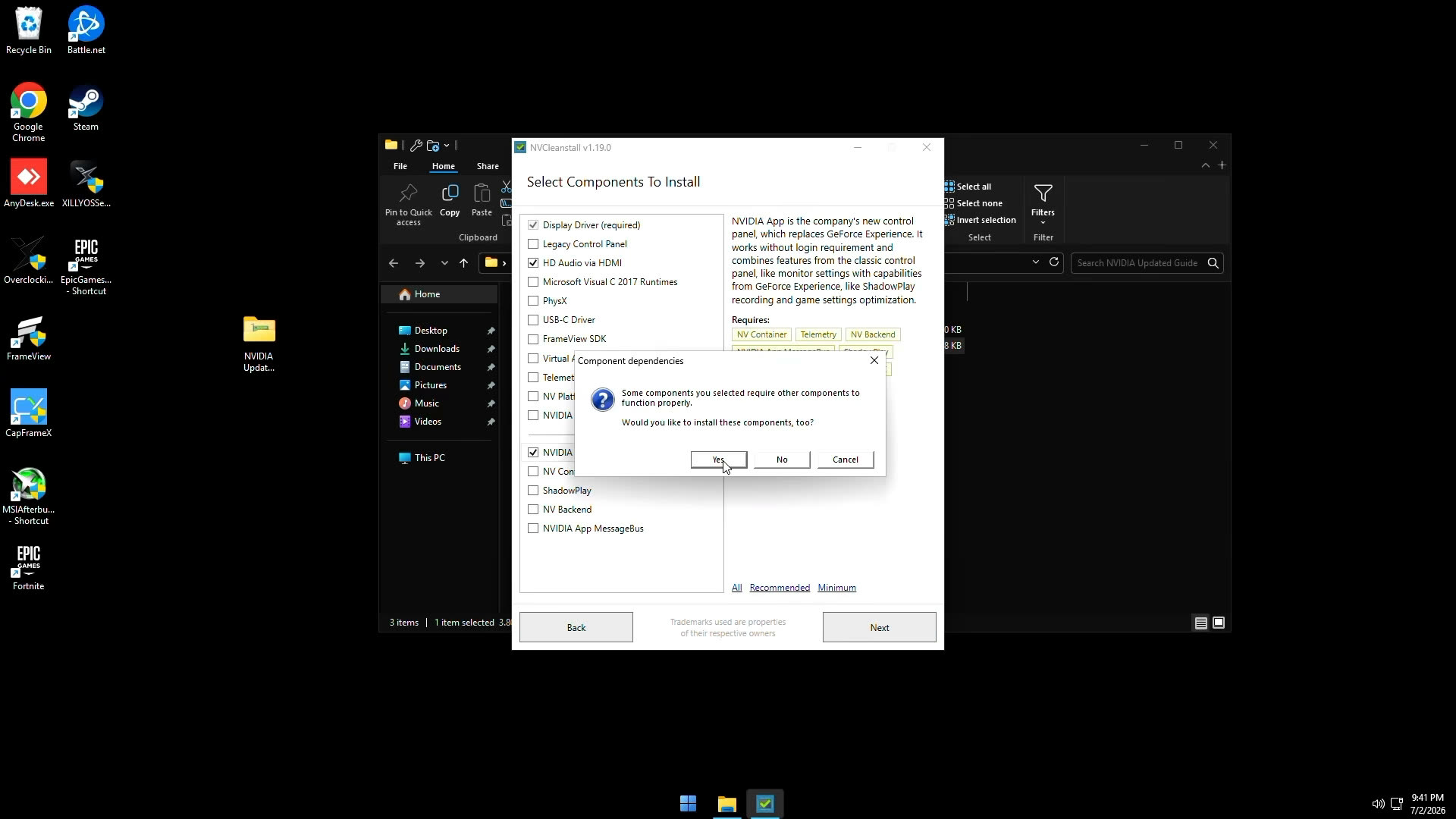
Open NVCleanstall. Pick the driver version you want. The newest driver works for most people. If a specific older driver was more stable for your games, pick it from the list inside NVCleanstall.
Step 3 — Check GPU-Z Before Changing Any Settings
Open GPU-Z. Find Bus Interface. Click the question mark next to it. Then start the render test so the card wakes up from its idle power state. This shows the real PCIe connection your GPU is running under load.
A card can be fully plugged in and still run at a fraction of its expected speed. If a high-end GPU shows x4 instead of x16, no NVIDIA App setting will fix that. Check the hardware first.
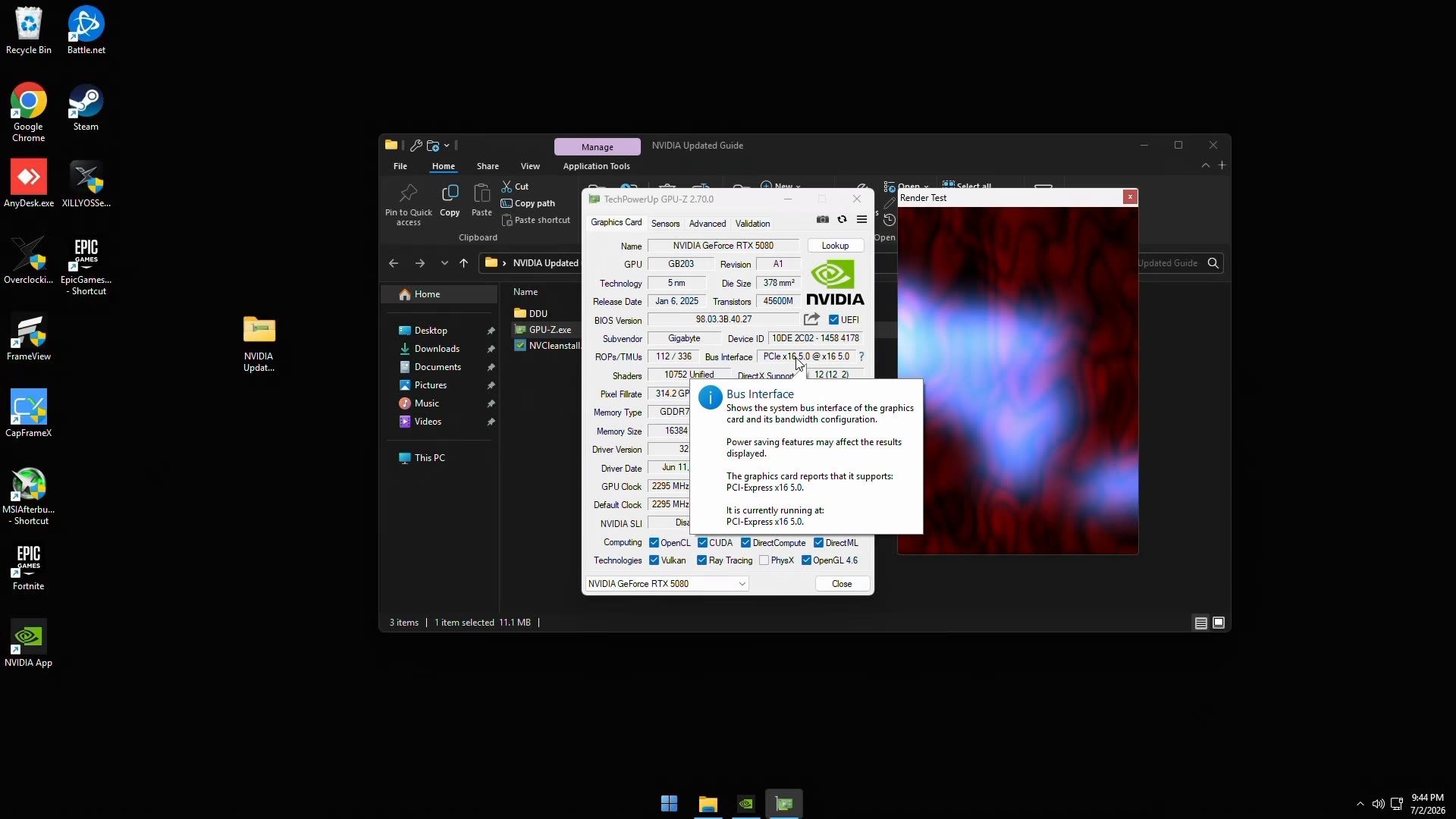
Make sure the card is in the top full-size PCIe slot, fully seated, latched in, and powered correctly. If you use a riser cable, test without it. A bad riser can cause lower bandwidth, crashes, and black screens. You may also need a BIOS update or a manual PCIe generation setting.
NVIDIA App — Turn Off What You Do Not Use
Open the NVIDIA App and go to Settings. Turn off Game Filters if you do not use them. Turn off Photo Mode, the overlay, recording, and Instant Replay if you do not need them. Running extra features in the background wastes FPS for no reason.
The most important one: turn off Automatic Game Optimization. You do not want NVIDIA automatically changing settings inside Fortnite, Valorant, or Call of Duty on its own. Also turn off Automatic Driver Downloads so updates happen when you decide, not right before a match.
NVIDIA App — Global Graphics Settings
Go to Graphics, then Global Settings. This is where the key competitive gaming settings live.
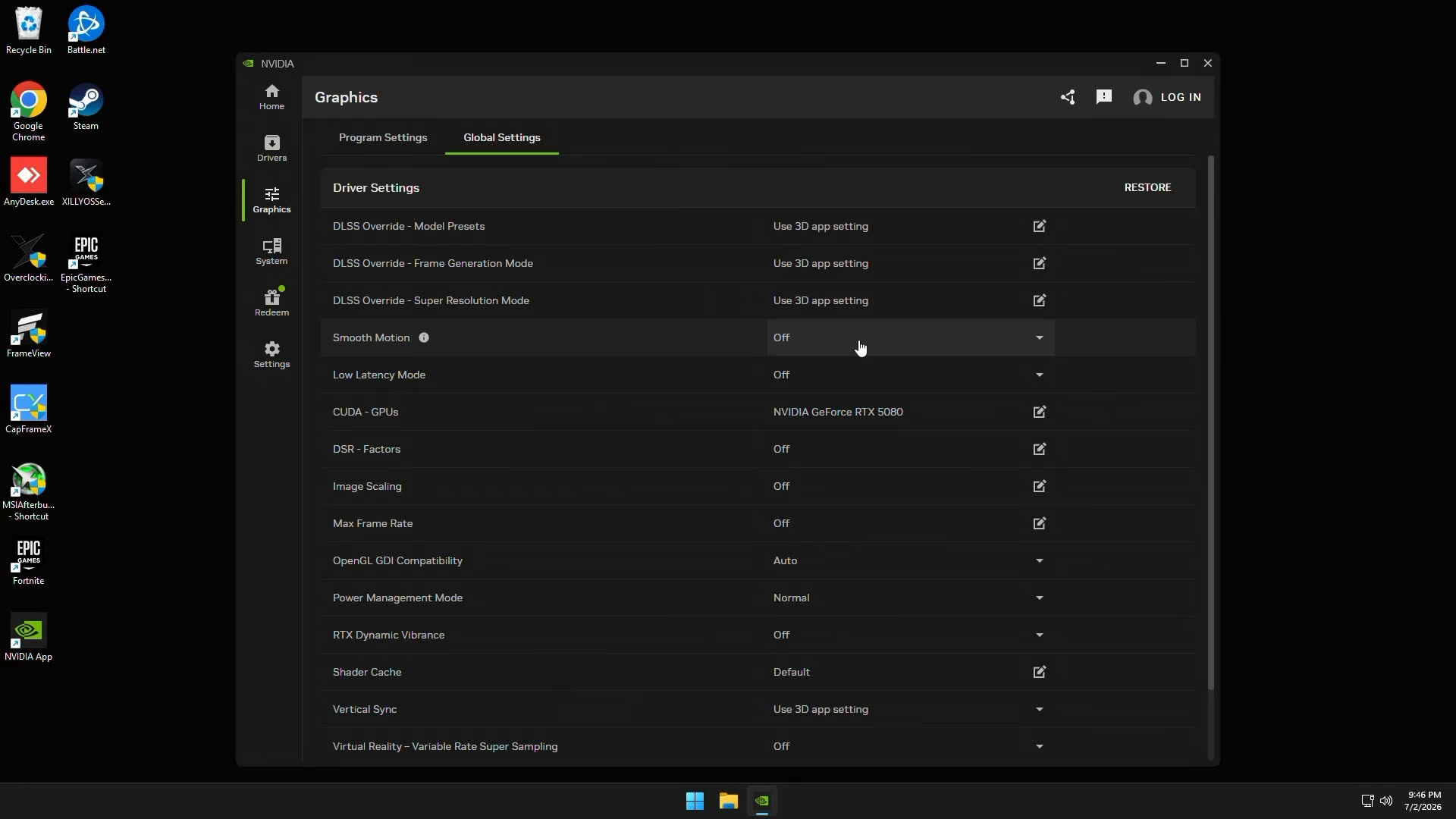
Low Latency Mode and Reflex are not the same thing. If your game has Reflex, use it inside the game settings. Low Latency Mode is the backup for games that do not have Reflex. It has worked on DirectX 12 titles since driver 551.23 in January 2024.
Legacy Settings
Click Show Legacy Settings in the NVIDIA App. For competitive games: turn off FXAA, Anti-Aliasing Transparency, and MFAA. Leave Anisotropic Filtering off and let the game handle it. Set Texture Filtering Quality to High Performance. Keep the global profile simple.
Display Settings — Check Your Refresh Rate
Go to System, then Displays. Make sure your resolution and refresh rate are correct. If you bought a 144 Hz, 240 Hz, 360 Hz, or 500 Hz monitor, confirm NVIDIA and Windows are actually using that rate. Many expensive monitors sit at 60 Hz for months without anyone noticing.
For most setups: native resolution, max refresh rate, No Scaling, scaling device set to Display. If Output Dynamic Range is available, set it to Full so colors do not look washed out.
Windows — Enable HAGS
Open Windows Settings and go to Display, then Graphics, then Change Default Graphics Settings. Turn on Hardware Accelerated GPU Scheduling. Restart your PC. HAGS helps reduce CPU-to-GPU scheduling overhead on modern hardware. Worth enabling and testing.
Quick Checklist
This Only Covers The GPU Layer
This guide does not fix BIOS settings, RAM speed, Windows bloat, game configs, or CPU behavior. NVIDIA is one layer. If your PC still feels choppy or delayed after following this, the problem is probably somewhere else in the stack.
Free PC Performance Check
Find What Is Actually Slowing Your PC Down
Run the free Xilly PC Check. It looks at your whole setup and tells you what the real problem is before you spend money on anything.
If you want the full setup handled for your exact hardware, book an optimization from the result page.
Frequently Asked Questions
What is inside the NVIDIA pack?
The pack includes DDU, NVCleanstall, and GPU-Z in one zip. All three tools ready to go without hunting for safe download links.
Should I use the newest NVIDIA driver?
Yes for most people. If an older driver was running more stable for your specific games, pick it inside NVCleanstall. The clean install process matters more than the version number.
Why check GPU-Z before changing any settings?
GPU-Z shows whether your card is running at the correct PCIe lane count under load. If it is running at fewer lanes than expected, no setting change will fix that. The slot, riser, cable, or BIOS is the problem.
Should Smooth Motion be on for competitive games?
No. Smooth Motion is driver-level frame generation. It can look smoother in single-player games but it adds input delay. Keep it off for ranked shooters.
Is Low Latency Mode the same as Reflex?
No. If your game has NVIDIA Reflex, use Reflex inside the game. Low Latency Mode is the global fallback for games that do not support Reflex.